I’ve spent years on cloud gaming platforms, here’s what actually matters. Most people get this wrong, and it costs them a frustrating 50 hours trying to fix what amounts to one simple network choice. Let me save you that time.
Network First, Everything Else Second
This is the most important section. Get this right and everything else is minor tuning.
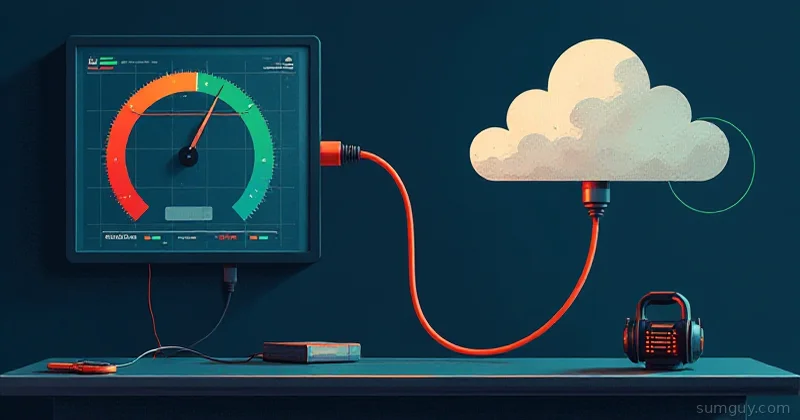
Wired ethernet > Wi-Fi. Every time. This isn’t about bandwidth. A 200Mbps Wi-Fi connection can feel worse than 50Mbps ethernet because of jitter. Cloud gaming sends frames as fast as possible; inconsistent delivery timing creates stutters that no amount of raw speed fixes. You’ll see your stream quality percentage at 100% and still feel lag because frames are arriving unevenly.
Minimum speeds are simpler than people think: 25Mbps for 1080p/60, 50Mbps if you’re comfortable, 100Mbps for 4K. But these are bandwidth floors. They matter less than you’d expect. Jitter is the enemy.
How to actually test: use a real latency/jitter test, not just a speed test. Run this:
ping -c 100 8.8.8.8Look at the variance, not just the average. If you’re seeing >5ms jitter on wired ethernet, your router or modem has a problem. That’s not normal, and it’ll destroy cloud gaming.
Router QoS: if you share a connection, set Quality of Service to prioritize your gaming device. Streaming video from another device on the same network will absolutely tank your session. It happens every single time someone starts Netflix upstairs, without exception.
Latency Is Not Just Bandwidth
Your ping to the cloud gaming server matters more than your download speed. This is counterintuitive and costs people weeks of frustration.
Most platforms show a server/connection quality indicator. GeForce Now shows RTT in the performance overlay. Use it. Look for servers close to you geographically.
The 20ms rule: under 20ms round-trip, most people can’t reliably tell the difference from local gaming in single-player content. 20 to 40 ms is still very playable for most games. Above 50ms and fast-paced games start feeling off in ways you can’t tune away with settings.
Why 200Mbps Wi-Fi loses to 50Mbps ethernet: Wi-Fi adds variable latency from RF interference, channel contention, and retry packets. The extra bandwidth is irrelevant if every 10th frame arrives 30ms late. You get smooth video but twitchy input, the worst combination.
ISP routing matters: if your ISP routes traffic inefficiently to the cloud gaming server’s region, you’ll have higher latency than someone on a slower but better-routed connection. You can’t fix this directly, but test at different times of day. Sometimes routing changes hour to hour.
Platform-Specific Settings Worth Knowing
GeForce Now: Don’t just max the streaming quality slider. Set it one step below max and see if it’s more stable. The top setting requires bulletproof consistent bandwidth, and most home connections don’t have that. You’ll drop to lower quality mid-session constantly.
NVIDIA Reflex: turn it on. It reduces render pipeline latency on their side. There’s no downside.
Resolution vs frame rate: if you’re on Performance tier (1080p/60), don’t try to push 4K via browser tricks. Accept the tier you’re on and optimize for it. Pushing above your tier causes constant quality oscillation.
Performance overlay: Ctrl+G (or Cmd+G on Mac) opens the in-stream stats mid-session. Shows RTT, bitrate, frame delivery. Use it to diagnose problems. If you see bitrate dropping under load, that’s network contention.
Xbox Cloud Gaming: The native Xbox app on Windows/Mac performs better than browser streaming. Use it if available.
If you’re on browser, Chrome/Edge with hardware acceleration enabled outperforms other browsers significantly. Firefox is fine but slower.
Lower the in-app resolution if you’re seeing artifacts, like blocky video or blurriness. Better to have clean 1080p than blurry 1440p. Quality dropouts are usually bitrate starvation, not platform problems.
Boosteroid: EU servers are the strong suit. If you’re in Europe, select the closest datacenter manually rather than auto. Their auto-selection sometimes favors load-balancing over geography.
Resolution settings in the dashboard: set to match your connection, not your display. Overreaching causes more artifacts than a lower-but-clean stream. One step below your connection’s actual capacity beats max settings every time.
Shadow PC: Set your Shadow Windows display to 1080p or 1440p with a refresh rate matching your target, because Shadow streams what the virtual display renders. Misconfigured display settings show up in stream quality immediately.
Windows power plan: set to High Performance in the Shadow VM. Sounds obvious, but it defaults to Balanced and affects render timing noticeably.
Input Device Matters More Than You Think
Controller via USB > Bluetooth > Wi-Fi controller: Every wireless hop adds latency. For cloud gaming, where you’re already adding network latency, wired USB is the right call if you’re at a desk.
Bluetooth controllers: fine for casual play, noticeable for twitchy games. If your Bluetooth controller feels off on cloud gaming, wireless overhead is the culprit. Try USB if you have the cable.
USB wireless receivers (Xbox, PlayStation): lower latency than Bluetooth for controllers that support them. If your controller has both options, use the receiver.
Legacy tip: the original Stadia controller (if you still have one) now works over USB with the open-source firmware Google released after the shutdown. It’s a genuinely good controller for cloud gaming: low latency, solid build quality, comfortable feel. Better than nothing if you’ve got one sitting around.
Keyboard and mouse for cloud gaming: works well for strategy/RTSs but adds perceived latency for FPS/action games compared to a controller. Mouse movement itself adds input processing overhead on top of the network latency you’re already fighting.
Screen and Display Tips
Enable Game Mode on your TV/monitor: This bypasses post-processing (sharpening, motion smoothing, interpolation) that adds display latency. On a TV, “Game Mode” typically cuts 20 to 100 ms of input lag, which is often more latency than the cloud gaming network itself adds. It’s the single easiest win after wired ethernet.
Variable Refresh Rate (VRR): If your display supports it (HDMI 2.1 VRR or FreeSync/G-Sync), cloud gaming benefits significantly. Frame delivery from a stream isn’t perfectly timed like a local GPU. VRR smooths out the minor frame timing variations that would otherwise cause micro-stutter.
Resolution vs refresh rate tradeoff: 1080p/120fps feels snappier than 4K/60fps for most game types. If you have the option in your platform settings, lean toward higher refresh rate over resolution, especially on cloud platforms where higher resolution means more compression at a given bitrate.
Streaming compression and 4K: 4K cloud streaming is compressed. On a 65-inch TV up close, you’ll see compression artifacts in detailed scenes. 1440p on a 27-inch monitor often looks cleaner than 4K on a large TV at the same bitrate. Accept this and match your resolution to your screen size and viewing distance.
Genre Matching, Be Honest With Yourself
Cloud gaming is not equal across all game types. Match your expectations to the genre, not your wishful thinking.
Works great: Single-player RPGs (Witcher, Cyberpunk, Baldur’s Gate): no reaction time requirements, no competition. Turn-based strategy (Civilization, XCOM): you set the pace. Adventure games (God of War, Horizon, most story games) where the game waits for you. Platformers with modest timing requirements. Indie games, visual novels, point-and-click adventures.
Playable but you’ll notice it: Action games with precise dodge timing. Third-person action/adventure with combat. Casual multiplayer (co-op RPGs, Mario Kart-style games). You can win, but you’re playing slightly behind.
Risky, only if your setup is dialed in: Competitive FPS (CS2, Valorant, Apex): if you’re playing ranked, latency matters and opponents on local hardware have an edge. Fighting games in competitive play: frame-precise inputs are unforgiving of any latency. Rhythm games: any latency breaks the sync with music.
Be honest: if you’re playing a rhythm game on cloud, you’re going to get frustrated. That’s not a bug, that’s physics.
When It Goes Wrong, Troubleshooting Checklist
Before you blame the cloud gaming platform, work through this:
-
Is your internet connection stable right now? Run a quick jitter test. ISPs have peak congestion (7 to 10pm local time is usually worst). Test at off-peak hours first to isolate whether it’s a connection problem or a load problem.
-
Are you on Wi-Fi? Switch to wired and test again. Seriously. This solves 60% of “cloud gaming is broken” complaints.
-
Is another device on your network streaming video or downloading? QoS that device or pause it temporarily. Video streaming eats bandwidth inconsistently, killing cloud gaming input feel.
-
What does the in-app performance overlay say? Most platforms have one. Check RTT and packet loss. RTT >50ms and you need a different server. Packet loss >0% is a network problem.
-
Are you on the right server region? Auto-selection isn’t always right. Try selecting the nearest region manually.
-
DNS: Some users report switching to
1.1.1.1or8.8.8.8improves routing to cloud gaming servers. Worth testing if you’re seeing consistently high latency. -
Artifacting (blocky/blurry moments): This is bitrate getting squeezed. Lower your streaming quality setting one step, or check for bandwidth contention on your network.
-
Input feels off but video looks fine: This is latency, not bitrate. Wired ethernet, check your RTT, try a different server. If it persists, it’s either your controller (Bluetooth?), your display lag, or the game type doesn’t suit cloud.
The Real Win
These tips apply everywhere, but GeForce Now is where they shine brightest, and here’s why it’s the platform worth optimizing for. The others are solid, but GeForce Now’s network optimization is genuinely best-in-class.
Not sure which cloud platform to optimize for yet? Start with the 2026 landscape comparison to pick your starting point.
Cloud gaming latency being solvable isn’t new. Stadia proved it in 2019, and it’s worth knowing that history. The tech works. Most people just set it up wrong.
Get the network right. Everything else is tuning.