Your GPU is Sitting There. Your AI Model is Waiting. What Could Go Wrong?
Quite a bit, actually. But let’s back up.
Local AI inference has gone from “cool party trick” to “genuinely useful thing you can run on your home server” in about two years. Tools like Ollama, llama.cpp, and LocalAI have made it so that running a 7B or 13B language model locally is within reach of anyone with a halfway decent machine. The catch? GPU acceleration is where things get complicated, and “complicated” is doing a lot of heavy lifting in that sentence.
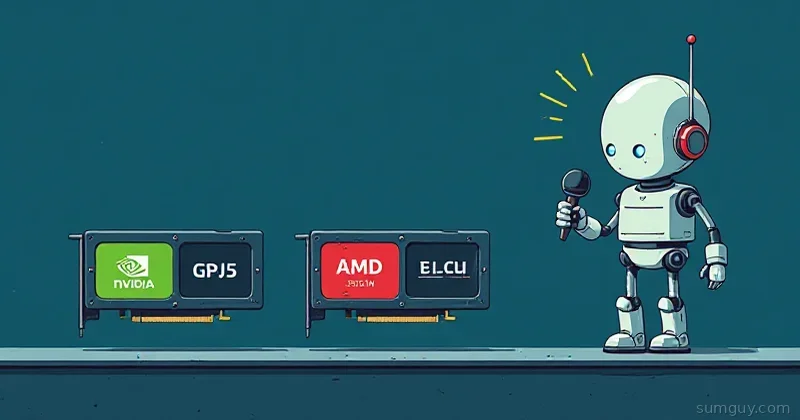
So let’s talk about CUDA, ROCm, and CPU inference, what they are, how to set them up in Docker, and which path will leave you with hair still attached to your head.
Why Your GPU Even Matters
Before diving into the three paths, it’s worth understanding why you’d bother with GPU acceleration at all.
When you run an LLM inference workload, the bottleneck is almost entirely memory bandwidth and parallel compute. A modern GPU has thousands of shader cores that can crunch matrix multiplications in parallel, the exact kind of math that transformers love. Your CPU, by contrast, has maybe 16-32 cores that are individually more powerful but collectively much slower for this workload.
In practice, this means:
- CPU only (llama.cpp, 7B model): ~5 to 15 tokens/second on a modern machine
- NVIDIA 3090 (24GB VRAM): ~50 to 80 tokens/second
- NVIDIA 4090 (24GB VRAM): ~80 to 130 tokens/second
- AMD RX 7900 XTX (24GB VRAM): ~40 to 70 tokens/second (on a good day, with ROCm cooperating)
Tokens per second matters because it’s the difference between watching words trickle out painfully and having something that feels responsive. At 5 tokens/sec, a 200-word response takes almost a minute. At 80 tokens/sec, it’s instantaneous.
Path 1: NVIDIA + CUDA, The Easy Path (Relatively Speaking)
NVIDIA has been the de facto standard for GPU compute for over a decade. CUDA is their proprietary parallel computing platform, and the entire AI/ML ecosystem is built around it. PyTorch, TensorFlow, basically every framework you’ve heard of, CUDA first, everything else eventually.
Getting CUDA Working in Docker
The key piece here is the nvidia-container-toolkit. This is what lets Docker containers access your host GPU without you doing anything too cursed.
Step 1: Install the toolkit on your host
# On Ubuntu/Debiancurl -fsSL https://nvidia.github.io/libnvidia-container/gpgkey | sudo gpg --dearmor -o /usr/share/keyrings/nvidia-container-toolkit-keyring.gpgcurl -s -L https://nvidia.github.io/libnvidia-container/stable/deb/nvidia-container-toolkit.list | \ sed "s#deb https://#deb [signed-by=/usr/share/keyrings/nvidia-container-toolkit-keyring.gpg] https://#g" | \ sudo tee /etc/apt/sources.list.d/nvidia-container-toolkit.listsudo apt update && sudo apt install -y nvidia-container-toolkitsudo nvidia-ctk runtime configure --runtime=dockersudo systemctl restart dockerStep 2: Verify it works
docker run --rm --gpus all nvidia/cuda:12.6.0-base-ubuntu24.04 nvidia-smiIf you see your GPU listed, you’re golden.
Docker Compose for Ollama (NVIDIA)
services:  ollama:    image: ollama/ollama:latest    container_name: ollama    restart: unless-stopped    ports:      - "11434:11434"    volumes:      - ollama_data:/root/.ollama    deploy:      resources:        reservations:          devices:            - driver: nvidia              count: all              capabilities: [gpu]
volumes:  ollama_data:
That’s it. Pull a model with docker exec ollama ollama pull llama3.2 and you’re running AI locally with full GPU acceleration. Honestly, it’s almost too easy, suspicious, even.
What GPUs Work Well
- RTX 3090 / 4090: Both have 24GB VRAM, excellent for 13B, 34B models. The 4090 is faster but costs more.
- RTX 3080 (10GB): Fine for 7B models, starts sweating with 13B.
- RTX 4070 (12GB): Sweet spot for the price if you’re not running massive models.
- Datacenter cards (A100, H100): Yes they work, no I’m not jealous, I’m fine.
Path 2: AMD + ROCm, Technically Works, Emotionally Draining
Let me be real with you. ROCm (Radeon Open Compute) has come a long way. It’s no longer a complete disaster. It is, however, still a “check the support matrix three times before buying” situation.
AMD’s open-source GPU compute stack is genuinely impressive from an engineering standpoint. The problem is that “supported” and “actually runs inference well” aren’t always the same thing.
Which Cards Are Actually Supported
ROCm officially supports a subset of AMD GPUs. The consumer-focused RX 7000 series support improved with ROCm 5.7+, but it’s not universal. As of early 2026:
- RX 7900 XTX / 7900 XT: Supported, works reasonably well
- RX 7800 XT / 7700 XT: Mixed results, YMMV
- RX 6000 series: Supported but older, some quirks
- RX 5000 series and below: Officially dropped or community-only support
The real gotcha: ROCm support on consumer cards sometimes lags behind the datacenter cards (MI250, MI300) by months. If you’re running an RX 7900 XTX and something doesn’t work, check if the fix exists for MI250 first, there’s a decent chance you can adapt it.
Docker Compose for Ollama (AMD/ROCm)
services:  ollama:    image: ollama/ollama:rocm    container_name: ollama-amd    restart: unless-stopped    ports:      - "11434:11434"    volumes:      - ollama_data:/root/.ollama    devices:      - /dev/kfd      - /dev/dri    group_add:      - video      - render    security_opt:      - seccomp:unconfined    environment:      - HSA_OVERRIDE_GFX_VERSION=11.0.0  # May be needed for RX 7000 series
volumes:  ollama_data:
Note that HSA_OVERRIDE_GFX_VERSION line. You might need it. You might not. Welcome to ROCm, where the answer is always “depends on your specific card and kernel version.”
Host Setup for ROCm
# Add your user to the required groupssudo usermod -aG video,render $USER
# Install ROCm (Ubuntu)sudo apt install rocm-hip-runtime rocm-dev
# Verifyrocminfo | grep -A5 "Agent 2"
The Honest ROCm Experience
AMD GPU support is like that one friend who’s technically reliable but makes everything just slightly more complicated than it needs to be. The container image is ollama/ollama:rocm instead of the default. You need device passthrough instead of the clean NVIDIA runtime. The HSA_OVERRIDE_GFX_VERSION environment variable exists and you will need to Google which value to set.
But, and this is important, it does work. The RX 7900 XTX with 24GB VRAM at a lower price point than a 4090 is genuinely compelling if you’re willing to do the homework. Performance on inference workloads is roughly 60 to 75% of an equivalent NVIDIA card, which is acceptable for home use.
Path 3: CPU Inference, Surprisingly Not Terrible
Here’s a hot take: CPU inference in 2026 is actually usable for smaller models.
llama.cpp (which underpins Ollama) has outstanding CPU optimization, including AVX2/AVX512 SIMD instructions, multi-threading, and aggressive quantization support. A modern 12-core CPU can run a 7B model at 8-15 tokens/second. That’s slow by GPU standards, but it’s not unusable.
When CPU Makes Sense
- You don’t have a supported GPU
- You’re running smaller models (1B, 7B)
- You’re doing batch processing where latency doesn’t matter
- Your GPU doesn’t have enough VRAM to fit the model (split layers between GPU and CPU is also an option)
CPU-Optimized Docker Compose
services:  ollama:    image: ollama/ollama:latest    container_name: ollama-cpu    restart: unless-stopped    ports:      - "11434:11434"    volumes:      - ollama_data:/root/.ollama    environment:      - OLLAMA_NUM_PARALLEL=2      - OLLAMA_MAX_LOADED_MODELS=1
volumes:  ollama_data:
No GPU flags needed, Ollama will just use CPU if no GPU is available. The OLLAMA_NUM_PARALLEL setting limits concurrent requests so you don’t thrash your CPU serving multiple requests at once.
Quantization is Your Friend
Running a 7B model in full float16 on CPU is painful. Running it in Q4_K_M quantization is… actually fine? Quantized models use 4-bit weights with some clever rounding, which cuts memory usage by 4x with minimal quality loss for most tasks. Ollama handles this automatically when you pull a model, the defaults are sensible.
The Practical Decision Matrix
Let’s cut through it:
| Situation | Recommendation |
|---|---|
| Have NVIDIA GPU | Use CUDA, follow the Docker Compose above, done |
| Have AMD RX 7900 series | ROCm is worth trying, budget an afternoon |
| Have older AMD GPU | Check the ROCm support matrix first, might be CPU time |
| No dedicated GPU | CPU inference with small/medium models, surprisingly viable |
| Want to buy a GPU for AI | Buy NVIDIA. I know. I’m sorry. |
The “Just Buy NVIDIA” Reality Check
I don’t love saying this. AMD makes good hardware, their open-source commitment is admirable, and the price-to-VRAM ratio is often better. But the AI inference ecosystem was built on CUDA, and that matters when:
- You want to run the latest models with day-one support
- You want to use frameworks other than just Ollama (PyTorch, etc.)
- You want to spend an afternoon setting things up, not a weekend debugging ROCm issues
If you already have an AMD GPU, absolutely use it, ROCm is good enough now that you shouldn’t buy new hardware just for CUDA. But if you’re buying from scratch specifically for local AI? The 4070 Super at ~$600 with 12GB VRAM will cause you less grief than the equivalent AMD card, even if the AMD card looks better on a spec sheet.
Closing Thoughts
Running AI locally is legitimately exciting. The models have gotten good enough that a well-quantized 7B model running on your home server can handle a surprisingly wide range of tasks. The tooling (Ollama, Open WebUI, llama.cpp) has matured to the point where the Docker Compose snippets above genuinely work without cursing at your terminal for hours.
NVIDIA is still the easy path. AMD is the principled path that respects your freedom and occasionally tests your patience. CPU inference is the “I refuse to buy new hardware” path, and honestly, respect.
Pick your path, run the compose file, pull a model, and enjoy the surreal experience of a language model running on your own hardware, no API key, no usage limits, no one else reading your prompts.
The GPU acceleration ecosystem isn’t perfect, but it’s genuinely functional now. That’s more than could be said two years ago, and that’s worth something.