Your Devices Are Snitches and It’s Time to Do Something About It
Open your router’s DNS query log sometime. Go ahead, I’ll wait. If you’ve never done it, prepare to feel personally betrayed by every device you own. Your smart TV — the one you bought because it had a good panel — is making thousands of DNS requests a day to analytics servers you’ve never heard of. Your phone pings ad networks in the background while it’s face-down on your desk. Your smart fridge is probably doing something unspeakable.
The fix isn’t a browser extension. Browser extensions only help one browser on one device. The fix is DNS-level blocking at the network level, which means every device — phones, TVs, game consoles, the IoT nightmare your partner calls “smart home” — gets filtered automatically, no software installation required.
Two tools dominate this space: Pi-hole, the grizzled veteran that’s been doing this since 2014, and AdGuard Home, the newer Go-powered challenger with a slicker UI and DNS-over-HTTPS baked in. Let’s figure out which one belongs on your network.
How DNS Blocking Actually Works
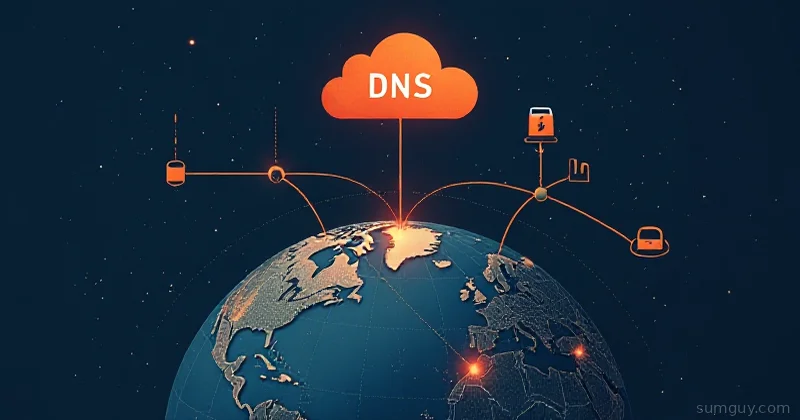
When your browser wants to load a page, it first asks a DNS server: “Hey, what’s the IP address for doubleclick.net?” A normal DNS server answers. A DNS ad blocker intercepts that question and responds with either a fake “nothing here” address or a flat-out refusal — the sinkhole.
The ad never loads because the DNS request never resolves. It’s elegant. The ad network never even gets a connection attempt. Your device thinks the server doesn’t exist, shrugs, and moves on.
Both Pi-hole and AdGuard Home work this way. You point your router’s DNS setting at whichever tool you’re running, and from that moment on, every device on your network is protected. No client software. No VPNs. No browser extensions. Just a DNS server with opinions.
This is categorically different from browser extensions. Your YouTube app on your TV doesn’t run a browser extension. Your smart home devices don’t have a way to install one. Your game console can’t run uBlock Origin. DNS blocking catches them all because it intercepts the question before anything else can happen.
Pi-hole: The OG DNS Sinkhole
Pi-hole has been around long enough to have a Wikipedia entry, a massive community, and enough documentation to keep you busy for a week. It was originally designed to run on a Raspberry Pi (hence the name, not the food), but it runs happily on anything: a VPS, an old laptop, a Docker container.
The tech stack: Python, PHP for the web UI, dnsmasq under the hood for actual DNS resolution, and a cron job called gravity that pulls and merges your blocklists. The Gravity blocklist system is genuinely great — you subscribe to community-maintained lists, and Pi-hole merges everything into a SQLite database it can query at wire speed.
What Pi-hole does well:
- Enormous community. If you have a problem, someone on Reddit solved it in 2019.
- Gravity blocklists are mature, well-maintained, and plentiful. The Firebog list collection alone covers most use cases.
- Query log and statistics dashboard are excellent. You can see exactly which device asked for what, when, and by how much.
- Long-term stats are satisfying. Nothing like watching your “blocked queries” counter tick past a million and feeling like you’ve achieved something in self-hosting.
- Conditional forwarding lets it resolve local hostnames too, which matters if you’re running a homelab.
- Rock solid on a Raspberry Pi 4 or better — the community has tested this to death.
Where it shows its age:
- The UI is functional but feels like it was designed in 2016. Because parts of it were.
- No native DNS-over-HTTPS or DNS-over-TLS support. You need a separate tool (like cloudflared or Unbound) to encrypt your upstream DNS. Not hard, but extra steps.
- Setup on bare metal involves a curl-to-bash script, which some people are philosophically opposed to.
Pi-hole on Docker
This is the civilized way to run it:
services: pihole: image: pihole/pihole:latest container_name: pihole ports: - "53:53/tcp" - "53:53/udp" - "80:80/tcp" environment: TZ: 'America/New_York' WEBPASSWORD: 'changeme' volumes: - './etc-pihole:/etc/pihole' - './etc-dnsmasq.d:/etc/dnsmasq.d' restart: unless-stoppedPort 53 is the DNS port — you need both TCP and UDP. Port 80 is the web UI. If you’re already running something on port 80 (you probably are), map it to something else like 8080:80.
One gotcha on modern Linux systems: systemd-resolved usually has port 53 bound already. You’ll need to either disable it or configure Pi-hole to use a different port and proxy through it. The Pi-hole docs cover this. It’s annoying but a one-time thing.
AdGuard Home: The Modern Challenger
AdGuard Home is a single Go binary that does everything: DNS server, DHCP server (optional), web UI, blocklist management, and encrypted DNS — all baked in. It came out of the AdGuard browser extension team and shows: the UI is polished, the defaults are sensible, and the onboarding wizard actually holds your hand through setup.
The tech stack: Go binary, built-in DNS server (no dnsmasq dependency), React frontend, and native support for DNS-over-HTTPS (DoH), DNS-over-TLS (DoT), and DNS-over-QUIC (DoQ). That last one is experimental but interesting if you’re forward-thinking.
What AdGuard Home does well:
- DNS-over-HTTPS and DNS-over-TLS are first-class features. Point it at 1.1.1.1 over DoH and your upstream queries are encrypted with zero extra tools. This is huge for privacy.
- The UI is genuinely nicer. Filtering rules, per-client settings, and schedule-based blocking (useful if you have kids and want YouTube inaccessible after 9pm) are all right there.
- Per-client configuration is excellent. You can give your work laptop different filtering rules than the kids’ iPad. Pi-hole can do some of this but it’s more manual.
- Parental controls and safe search enforcement are built in.
- Single binary means simpler deployment and updates.
- The setup wizard is legitimately good for beginners — onboarding takes maybe five minutes.
- Uses less memory (~30MB) than Pi-hole (~50MB), which matters if you’re running on a very old machine.
Where it’s not perfect:
- Smaller community than Pi-hole. Stack Overflow is not overflowing with AdGuard Home answers.
- The blocklist ecosystem is less mature. You have fewer curated lists to choose from, though the popular ones work fine.
- Query log retention and statistics aren’t quite as detailed as Pi-hole’s by default.
AdGuard Home on Docker
services: adguardhome: image: adguard/adguardhome:latest container_name: adguardhome ports: - "53:53/tcp" - "53:53/udp" - "3000:3000/tcp" # setup wizard - "80:80/tcp" # web UI after setup - "443:443/tcp" # DoH - "853:853/tcp" # DoT volumes: - './adguard/work:/opt/adguardhome/work' - './adguard/conf:/opt/adguardhome/conf' restart: unless-stoppedHit port 3000 first for the setup wizard, then it moves to port 80 for the regular UI. The wizard walks you through DNS configuration, network interface selection, and admin account creation. It takes about four minutes.
Same port 53 conflict caveat as Pi-hole applies on Linux. Same fix.
DNS Over HTTPS / TLS: The Privacy Layer
This is where AdGuard Home pulls ahead for privacy-conscious setups.
The problem: Normal DNS requests go in the clear. Anyone listening on your network or your ISP can see exactly which domains you’re querying. Your ISP knows you visited sumguy.com at 3:47 PM, even if your browser had an ad blocker.
The fix: Encrypt the DNS query itself. DNS-over-HTTPS (DoH) wraps DNS requests in HTTPS, so your ISP sees an encrypted connection to a DoH endpoint, not individual domain lookups. DNS-over-TLS (DoT) does the same thing over TLS on port 853.
AdGuard Home: Supports both DoH and DoT natively. You point it at an upstream DoH provider (like 1.1.1.1 or Quad9), and it encrypts all your queries for you. Configure it in the UI under “Upstream DNS servers.”
Pi-hole: Doesn’t have native support, so you need to install cloudflared (Cloudflare’s tunnel tool) or Unbound (a recursive resolver) separately. It works great but adds another tool to maintain.
If privacy is your primary concern and you don’t want to mess with extra tools, AdGuard Home wins here.
Pointing Your Router at Whichever One You Chose
This is where the magic happens. The setup varies by router, but the principle is the same: log into your router admin panel, find the DHCP or DNS settings, and replace the upstream DNS server IPs with the IP address of your Pi-hole or AdGuard Home instance.
On most home routers this is under LAN Settings or DHCP Server settings. Set the “Primary DNS” to your server’s local IP (e.g., 192.168.1.100). You can leave secondary DNS blank, or point it at a public DNS as a fallback (though if your blocker is down and you fall back to 8.8.8.8, ads will slip through).
Devices pick up the new DNS via DHCP lease renewal, which happens automatically or when they reconnect. You can speed it up by renewing the lease or just rebooting things.
If you can’t change DNS on your router (some ISP-provided routers lock this down), you can configure DNS manually on individual devices, though that defeats the “every device automatically” appeal.
Blocklists: The Addiction Nobody Warns You About
Both tools support custom blocklists in various formats (hosts files, AdBlock-style rules, domain lists). And here’s the thing: once you start adding blocklists, you cannot stop.
For Pi-hole: The Firebog’s Tick List is a curated collection of well-maintained lists covering ads, trackers, malware domains, and telemetry. There are hundreds of community lists available.
For AdGuard Home: The built-in list selector covers most bases, and you can add any URL to custom lists. The Adblock lists work fine too.
The blocklist addiction goes like this:
- You add the basic ad lists. Blocking rate: ~15%.
- You add tracker lists. Blocking rate: ~25%.
- You add telemetry lists. Your Windows PC breaks slightly. You fix it with some whitelists.
- You add malware domain lists. You feel safe.
- You find a “smart TV telemetry” specific list. Your TV stops doing anything useful. You whitelist half of it.
- You have 47 blocklists. Your blocking rate is 40%. You stare at the dashboard at 11pm on a Tuesday instead of sleeping.
This is normal. This is the path. The good blocklists to start with: Steven Black’s hosts file, OISD (the best ad list), and the popular AdGuard lists. Then go from there.
Whitelisting: Because You Will Break Things
Some legitimate services share domains with tracking infrastructure, and some blocklists are aggressive. Things that commonly need whitelisting:
msftconnecttest.com— Windows network check, blocking it makes Windows think you have no internetclients1.google.com— various Google services- App Store / Play Store domains if your phone starts acting up
- Smart home device cloud APIs (if you actually want them to work)
safebrowsing.googleapis.com— if Google Safe Browsing is blocked on your devices
Both tools have straightforward whitelisting. In Pi-hole it’s under “Whitelist” in the UI. In AdGuard Home it’s a custom filter rule: @@||domain.com^.
The query logs in both tools are invaluable here. When something breaks, check the log, filter by the affected device, and see what got blocked. This is one of the best arguments for Pi-hole — the query dashboard is better for debugging.
Statistics and Query Logging Comparison
Pi-hole’s advantage: The query log is incredibly detailed. You can see how many queries each device made, which got blocked, which lists caught them, and historical trends. The dashboard is genuinely useful for understanding your network’s behavior.
AdGuard Home’s advantage: Cleaner UI, easier to understand at a glance. Statistics are there, just presented differently. Good enough for most people.
For a homelab nerd who wants to stare at graphs, Pi-hole wins. For someone who just wants DNS blocking to work, both are fine.
Redundancy and Failover
Some people run Pi-hole and AdGuard Home together for redundancy. The most common setup: AdGuard Home handles DNS-over-HTTPS to the upstream internet, Pi-hole does blocklists and query logging. Each forwards to the other.
Is this overkill? Absolutely. Is it a perfectly reasonable way to spend a Saturday afternoon? Also absolutely. For most people, pick one and run it. If DNS goes down, you lose ad blocking until you fix it — that’s the tradeoff of this whole approach. Running two instances means more to maintain and microseconds of extra latency. It’s only worth it if you’re deep in the homelab rabbit hole.
What DNS Blocking Can’t Stop
Here’s the hard truth: DNS blocking won’t stop ads embedded in the same domain as content.
YouTube serves ads from youtube.com. If you block youtube.com, the ads disappear but so does YouTube. YouTube ads aren’t piped in from ads.google.com; they come from YouTube’s own infrastructure. DNS blocking can’t distinguish between “this is content I want” and “this is an ad” when they share the same domain.
The same goes for Spotify, Netflix with ads, news sites with paywalls that block content if you block their domains, and so on. Browser extensions still beat DNS blocking here because they can look at the page content and kill specific elements.
DNS blocking is best for:
- Ad networks and trackers that serve from separate domains (Google Analytics, Doubleclick, Facebook Pixel, etc.)
- Telemetry from smart devices
- Malware domains
- Bot farms and crypto miners
It’s not a complete ad killer. It’s a network-wide privacy upgrade.
Head-to-Head Comparison
| Feature | Pi-hole | AdGuard Home |
|---|---|---|
| Setup difficulty | Medium | Easy |
| UI quality | Good | Great |
| DNS-over-HTTPS/TLS | Needs extra tool (cloudflared) | Built-in |
| Per-client rules | Limited | Excellent |
| Blocklist ecosystem | Huge | Smaller but sufficient |
| Community/support | Very large | Smaller but growing |
| Parental controls | Basic | Good |
| Resource usage | ~50MB RAM | ~30MB RAM |
| Scheduled blocking | No | Yes |
| Query log detail | Excellent | Good |
| Docker support | Yes | Yes |
| DHCP server | Yes | Yes |
The Verdict
Use Pi-hole if:
- You want the largest community and the most documentation
- You’re already comfortable with Linux administration
- You want the most detailed query statistics for your network
- You’re running it on a Raspberry Pi (it’s practically tradition at this point)
Use AdGuard Home if:
- You’re newer to self-hosting and want a smoother setup experience
- You want DNS-over-HTTPS without installing extra tools
- You have kids and want per-device or scheduled filtering
- You prefer a more modern, polished UI
- You’re running it on minimal hardware and want lower memory usage
- You care about privacy and don’t want to mess with cloudflared
Both are free, both run on Docker, both will meaningfully reduce the amount of tracking garbage on your network. The “correct” choice is whichever one you’ll actually set up and leave running. A Pi-hole that sits half-configured is worse than AdGuard Home that’s been running for six months.
Pick one, spend an afternoon with it, and enjoy the deeply satisfying experience of watching your router block your smart TV’s 2,000 daily attempts to tell Samsung exactly how long you stared at your screensaver. You’ve earned it.