WordPress is one of the most popular content management systems (CMS) in the world, and for good reason. With its easy-to-use interface, customizable themes, and extensive plugin library, WordPress is the go-to platform for individuals and businesses looking to create a stunning website. It’s free, user-friendly, and versatile, allowing users to create a website for just about anything. Whether it’s a blog, an online store, or a portfolio, WordPress has got you covered. Plus, with its regular updates and strong community support, you can rest assured that your website will be secure and up-to-date. Overall, WordPress is awesome because it provides an accessible platform for anyone to create a beautiful and functional website without having to be an expert in web development.
The part that matters to most of us is how easy is it to install. well if you follow this tutorial it is very easy.
Install Docker
How to install Docker rootlessHow to install Docker rootless Install docker following our tutorial.
You can even run this in docker rootless!
How to install Docker rootlessHow to install Docker rootless
Create a Docker Compose File
Create a new directory for your WordPress project and create a docker-compose.yml file inside it. Paste the following code into the file:
services:  wordpress_caddy:    image: caddy:alpine    container_name: wordpress_caddy    ports:      - 80:80      - 443:443    depends_on:      - wordpress_phpfpm    volumes:      - ./wordpress:/var/www/html      - ./caddy_data:/data      - ./caddy_config:/config      - ./Caddyfile:/etc/caddy/Caddyfile    networks:      - net
  wordpress_db:    image: mariadb:11    container_name: wordpress_db    volumes:      - ./db:/var/lib/mysql    environment:      MYSQL_ROOT_PASSWORD: wordpress_r_p      MYSQL_DATABASE: wordpress      MYSQL_USER: wordpress      MYSQL_PASSWORD: wordpress    restart: unless-stopped    networks:      - net
  wordpress_phpfpm:    image: wordpress:fpm    #image: ghcr.io/kingpin/php-docker:8.1-fpm-alpine    container_name: wordpress_phpfpm    environment:      WORDPRESS_DB_HOST: wordpress_db      WORDPRESS_DB_USER: wordpress      WORDPRESS_DB_PASSWORD: wordpress      WORDPRESS_DB_NAME: wordpress    restart: unless-stopped    depends_on:      - wordpress_db    volumes:      - ./wordpress:/var/www/html      - ./php_override.ini:/usr/local/etc/php/conf.d/uploads.ini    networks:      - net
networks:  net:
Create a caddy Configuration File
create a new file called Caddyfile and copy these values in there.
example.com { root * /var/www/html php_fastcgi wordpress_phpfpm:9000 file_server}Make sure to edit example.com on line 1 to your domain or subdomain.
Create a php_override.ini file
Create a new file and call it php_override.ini, and put the following text in there. This lets you edit file upload size, and script execution times. needed for larger files.
file_uploads = Onmemory_limit = 500Mupload_max_filesize = 100Mpost_max_size = 100Mmax_execution_time = 600max_file_uploads = 50000max_input_time = 5000max_input_vars = 5000Start docker containers
docker compose up -dAccess your site
Once the containers are up and running, you can access WordPress by opening a web browser and navigating to http://example.com (replacing example.com with the domain you picked. This will lead you to a setup page where you initially pick your language.

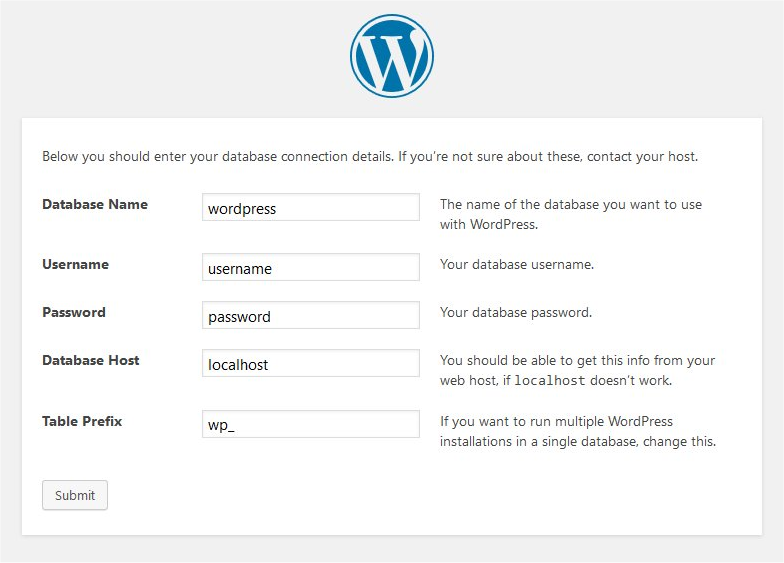
Along the way, it should pick your DB info from the env variable we defined. if not you will enter your DB info with the following if you didnt edit it in the docker-compose.yml above.
-
Database host: wordpress_db
-
User: wordpress
-
Password: wordpress
-
Database Name: wordpress
-
Table Prefix: whatever you want it to be, you can leave it default of wp_
This should get you up and running!
You can reference https://wordpress.org/documentation/article/how-to-install-wordpress/[https://wordpress.org/documentation/article/how-to-install-wordpress/](https://wordpress.org/documentation/article/how-to-install-wordpress/) if you need more help.
Related Reading
- Install a php script in PHP-FPM & Caddy via Docker
- Install Caddy reverse proxy via Docker
- Appwrite Backend-as-a-service (BaaS)
- WordPress, Docker, NGINX, and MySQL via Ansible
When It Doesn’t Just Work
Nine times out of ten this setup runs fine on the first try. The tenth time is a Monday, and here’s what’s usually broken.
”Site can’t be reached” after docker compose up -d
Caddy is doing automatic HTTPS, which means it needs to reach Let’s Encrypt to get a cert. If you’re testing on a LAN hostname or a domain that doesn’t resolve publicly yet, Caddy will sit there failing TLS challenges and serving nothing. Fix: use a real public domain pointed at your server’s IP before you start, or add a tls internal directive to the Caddyfile to use Caddy’s self-signed cert for local testing:
example.com { tls internal root * /var/www/html php_fastcgi wordpress_phpfpm:9000 file_server}Don’t ship that to production. But it’ll get you through the WordPress installer without fighting Let’s Encrypt.
PHP-FPM starts before the webroot is populated
The wordpress:fpm image writes its files into /var/www/html on first boot. Caddy starts at almost the same time and immediately gets 404s until that completes. If WordPress is showing a blank page or a directory listing, give it ten seconds and reload. If it’s persistent, check that both containers are mounting the same ./wordpress path, a typo here means Caddy is serving an empty directory while PHP-FPM is writing to a completely different one.
File uploads still failing despite php_override.ini
The ini file gets ignored if it ends up mounted in the wrong spot. Verify it actually landed:
docker exec wordpress_phpfpm php -i | grep upload_max_filesizeYou want to see upload_max_filesize => 100M => 100M. If it still says 2M, the volume mount path doesn’t match where PHP-FPM loads conf overrides. The correct path is /usr/local/etc/php/conf.d/, which is what the Compose file above uses. Double-check your indentation; YAML eats misaligned volume entries silently.
Permissions errors on the WordPress directory
If the WordPress admin is throwing “Unable to create directory” when you try to upload media, the wordpress_phpfpm container can’t write to ./wordpress. The container runs as www-data (uid 33). Fix it once:
sudo chown -R 33:33 ./wordpressIf you’re running rootless Docker, the uid math gets more interesting, see the rootless Docker guide for the full picture.
Keeping WordPress updated without losing your mind
The WordPress admin will nag you to update core, themes, and plugins through the UI. That works fine here because ./wordpress is a bind mount, updates write to your host and survive container restarts. What you shouldn’t do is pull a new wordpress:fpm image and expect it to upgrade an existing install. The image brings its own WordPress files but your bind mount takes precedence. Use the admin UI for core updates, and pull new images only when you want to update PHP itself.