Your RAID Array Just Lost a Drive. Congratulations, You’re Not Done Yet.
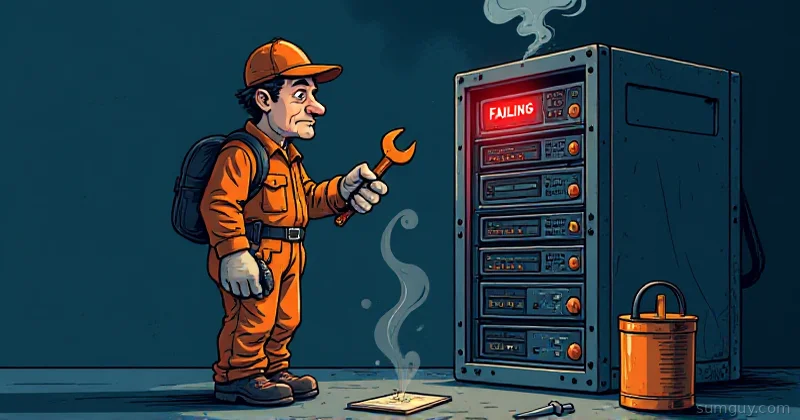
The drive health alert fires at 11 PM. One of your RAID 5 drives is dead. You’ve got redundancy, so you’re fine, right? You order a replacement on next-day delivery and go to bed.
Here’s what’s happening while you sleep: your array is running degraded, one drive death away from total data loss. And while you’re waiting for that replacement, the surviving drives are under extra stress. If any of them has a sector that’s been slowly going bad, and on drives that are a few years old, there’s a real chance, you’re going to find out about it during the rebuild.
This is the part of RAID that the enthusiast forums gloss over. RAID protects against a complete drive failure. It does nothing about silent corruption, simultaneous failures, or the specific window of vulnerability during a rebuild. Let’s talk about the math.
Unrecoverable Read Errors: The Rebuild Killer
Every hard drive has a spec called the Unrecoverable Read Error rate (URE). For consumer drives the spec sheet has historically said 1 error per 10^14 bits read. Enterprise drives usually spec at 10^15. This sounds like a lot until you do the arithmetic.
2026 update. Read your actual datasheet. A lot of the modern high-capacity helium drives, 18TB-22TB consumer SKUs, quietly spec at 10^13 instead of 10^14 (sometimes buried under “non-recoverable read errors per bit read” rather than the cleaner URE wording). Some manufacturers also dropped the number from the public spec entirely. The math below uses 10^14 as the historical baseline, but if your drives are 18TB+, assume the real-world failure curve is steeper.
A 4TB drive contains roughly 3.2 × 10^13 bits. Rebuilding a RAID 5 array after a failure requires reading every bit from every surviving drive. For a 3-drive RAID 5 with 4TB drives, that’s approximately 2 × 3.2 × 10^13 = 6.4 × 10^13 bits read to rebuild one 4TB drive’s worth of data.
Consumer URE rate: 1 error per 10^14 bits. Bits read during rebuild: ~6.4 × 10^13. Probability of hitting at least one URE: ~47%.
Nearly a coin flip. During that rebuild, you have roughly a 47% chance of hitting an unrecoverable read error on one of the surviving drives. When mdadm hits a URE during a RAID 5 rebuild, it can’t reconstruct the missing data, the parity calculation breaks down. Depending on your setup, this either corrupts that portion of data silently or aborts the rebuild entirely.
On larger drives the math gets worse. A 3-drive RAID 5 with 8TB drives reads ~1.28 × 10^14 bits during rebuild, statistically expected to hit more than one URE on consumer drives.
This is not a reason to panic. It is a reason to:
- Use RAID 6 instead of RAID 5 when drives are 4TB or larger (see RAID 6 vs RAID 10)
- Keep your arrays monitored so you know about degraded state immediately
- Replace failed drives fast: the longer you run degraded, the larger your exposure window
How Long Does a Rebuild Actually Take?
RAID 5 rebuild speed depends on drive speed and array activity. A rough benchmark on spinning drives doing a sequential rebuild on an idle array:
- 4TB drive: 4 to 6 hours
- 8TB drive: 10 to 18 hours
- 12TB drive: 18 to 28 hours
- 18TB drive: 24 to 40 hours
- 22TB drive: 30 to 48 hours
2026 reality check. Those are best-case numbers for an idle array. Add 2-3× for any production workload, competing IO, scrubbing, or just normal NAS service stretches rebuilds significantly. An 18TB rebuild on a busy 8-bay array routinely runs past 48 hours. This is exactly why RAID 6 / Z2 / Z3 exist as minimum-viable parity for modern drive sizes.
During that entire window, your array is degraded. If a second drive fails, for any reason, you lose everything. No recovery. No “but I had RAID.” Just gone.
# Check rebuild progress and estimated time remainingwatch cat /proc/mdstatmd5 : active raid5 sdd[3] sdc[1] sdb[0] 8388608 blocks super 1.2 level 5, 512k chunk, algorithm 2 [3/2] [UU_] [===========>.........] recovery = 58.3% (2457600/4194304) finish=12.3min speed=39247K/sec[UU_] means one device is missing. The rebuild progress and finish estimate are right there. That finish=12.3min is optimistic, production arrays with larger drives and active workloads take much longer.
Software RAID vs Hardware HBA: What You Actually Need
Home lab RAID conversations inevitably hit the “should I use a hardware RAID card?” question. Short answer for most home labs: no, use software RAID with a plain HBA.
Software RAID (mdadm/Linux MD):
- Runs on your CPU: parity calculations use processor cycles
- Completely transparent: you can take the drives to any Linux system and reassemble the array
- No proprietary controller to fail or become discontinued
- Overhead is negligible on modern CPUs for most home lab workloads
Cheap “RAID cards” (IT mode HBA + fake RAID):
- Cards like the LSI 9211-8i flashed to IT mode are just HBAs: they present drives directly to the OS
- Linux MD handles the RAID in software
- This is the correct approach for home lab: cheap, portable, reliable
True hardware RAID controllers (Areca, LSI in IR mode, Dell PERC):
- Controller handles all RAID operations in dedicated hardware
- Has a BBU (battery backup unit) that eliminates the write hole problem
- Array is tied to that specific controller: if the controller dies, you need an identical replacement to recover
- Overkill for home lab use; makes sense in enterprise where you have spares
For a 4 to 8 bay home NAS: grab an LSI 9211-8i (or equivalent) flashed to IT mode for about $30 on eBay, run mdadm, sleep soundly.
Setting Up Monitoring That Actually Tells You Things
The most important part of running RAID long-term is knowing about failures immediately, not when you go looking for a file and find it gone. mdadm has built-in monitoring that sends email alerts. Set it up.
# Edit mdadm config to add your emailecho 'MAILADDR your@email.com' >> /etc/mdadm/mdadm.conf
# Start the mdadm monitor daemon (checks every 30 minutes)mdadm --monitor --daemonise --mail=your@email.com --delay=1800 /dev/md0 /dev/md5
# Or add to systemd: enable mdmonitor servicesystemctl enable mdmonitorsystemctl start mdmonitor
The --delay=1800 means check every 1800 seconds (30 minutes). For more aggressive monitoring, drop it to 600.
Also set up periodic scrubbing, a consistency check that reads every block and verifies parity. This catches UREs before a drive failure makes them catastrophic:
# Trigger a manual scrub on your arrayecho check > /sys/block/md5/md/sync_action
# Watch progresswatch cat /proc/mdstat
# Automate scrubs monthly via cron (add to /etc/cron.d/raid-scrub)# 0 2 1 * * root echo check > /sys/block/md5/md/sync_action
A scrub that finds errors is telling you a drive is going bad before it fully fails. That’s the early warning system you want.
Simulating a Failure (Before You Have a Real One)
The best time to test your recovery procedure is not at 11 PM when a real drive dies. Do it now, on purpose:
# Mark a drive as failed (non-destructive — just marks it failed in md)mdadm /dev/md5 --fail /dev/sdd
# Check degraded statemdadm --detail /dev/md5 | grep State# State : clean, degraded
# Remove the failed devicemdadm /dev/md5 --remove /dev/sdd
# Add a replacement (hot spare or new drive)mdadm /dev/md5 --add /dev/sde
# Watch the rebuildwatch cat /proc/mdstat
Run through this once. Know what the commands are, know what the output looks like, know how long the rebuild takes on your hardware. The first time you do this should not be during an actual emergency.
RAID Is Not a Backup. Seriously.
This is the part of the article you forward to the person in your life who thinks “I’ve got RAID so I’m fine”:
RAID protects against one thing: a complete physical drive failure causing service interruption. It does not protect against:
- Accidental deletion: you delete a file, RAID deletes it on all drives simultaneously
- Filesystem corruption: bad write corrupts your filesystem, corruption is mirrored/striped faithfully
- Ransomware: encrypted files are encrypted on every drive in the array
- Controller failure: if your hardware controller dies and you can’t reassemble the array, the data is inaccessible
- Fire, flood, theft: all drives in the array are in the same physical location
RAID is for uptime. Backups are for data recovery. You need both. The 3-2-1 rule: three copies of your data, on two different media types, with one copy off-site. RAID is not one of those copies. RAID is the thing that lets your NAS keep serving files while you wait for a replacement drive.
Run Restic, Borg, or any backup tool to a second location. Then run RAID. In that order of importance.
The Full Picture
This series covers the full RAID landscape for home lab use:
- RAID 0, 1, and 5: Pick One, the foundation, the trade-offs, and when each makes sense
- RAID 6 vs RAID 10: Two Dead Disks, the 4-drive decision and why it depends on your workload
- RAID 50/60: Nested Parity Done Right, when you’ve got more drives than sense
- RAID-Z and dRAID: ZFS Parity Explained, what ZFS does differently, and why
- mdadm Day-2: Grow, Replace, Scrub, what to actually do after the array is built
- This article: the rebuild math, monitoring, and why RAID is not your backup strategy
Build the array. Set up monitoring. Test a simulated failure before you need the real thing. And then go set up your backups, because that’s the part that actually saves you when everything else goes sideways.