The Filing Cabinet Has Been “Temporary” Since 2019
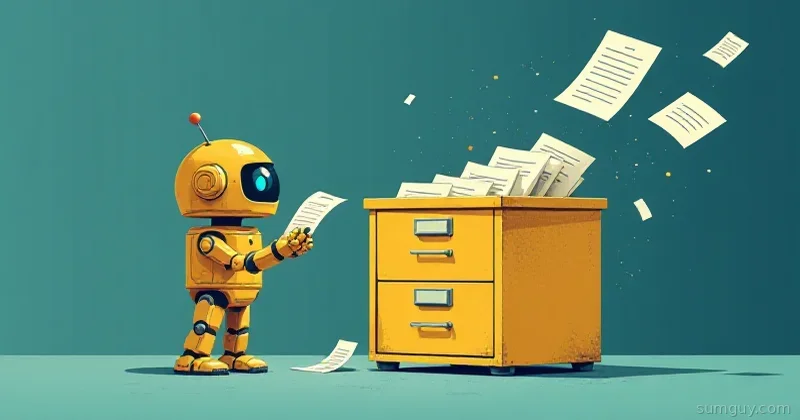
You know the pile. Insurance documents, tax forms from three years ago, the owner’s manual for an appliance you no longer own, a warranty card for something that definitely broke within the warranty period but you couldn’t find the receipt for. There’s a filing cabinet involved somewhere, or maybe just a box. The system is “I’ll know where it is if I need it,” which is a lie you tell yourself.
Paperless-ngx is the actual solution to this problem. It’s a Django application that combines document scanning, OCR (optical character recognition), full-text search, auto-tagging, and a web interface into a self-hosted document management system. You scan something once, it gets OCR’d, tagged, filed, and becomes instantly searchable.
“Where’s my insurance policy?” becomes a search query, not a twenty-minute excavation.
What Paperless-ngx Actually Does
Before the setup: what you’re actually getting.
Tesseract OCR integration: Every document gets OCR’d on ingestion. The PDF stored in Paperless contains the original scan plus a searchable text layer. You can copy-paste text from scanned documents. You can search inside them.
Full-text search: Search for “insurance bicycle 2024” and get every document mentioning those words. The underlying search is PostgreSQL full-text or a configurable search backend.
Auto-tagging and correspondents: Set rules like “if the document contains ‘Blue Cross’ → tag as ‘insurance’, set correspondent to ‘Health Insurance Co.’” These rules run on ingestion. Over time your documents self-organize.
Document types: Categorize by type (invoice, letter, contract, statement) in addition to tags. Useful for filtering.
Consumption folder: Drop files into a folder, Paperless picks them up automatically. Point your scanner’s scan-to-folder here.
Email ingestion: Connect an IMAP mailbox, Paperless checks it and imports attachments. Your bank’s PDF statements automatically appear in Paperless.
Docker Compose: The Full Stack
Paperless-ngx requires Redis (task queue), a database (PostgreSQL recommended over SQLite for anything real), and optionally Apache Tika (for better Office document handling).
services:  broker:    image: redis:7    restart: unless-stopped    volumes:      - redis-data:/data
  db:    image: postgres:16    restart: unless-stopped    environment:      POSTGRES_DB: paperless      POSTGRES_USER: paperless      POSTGRES_PASSWORD: changethis    volumes:      - postgres-data:/var/lib/postgresql/data
  webserver:    image: ghcr.io/paperless-ngx/paperless-ngx:latest    restart: unless-stopped    depends_on:      - db      - broker      - gotenberg      - tika    ports:      - "8000:8000"    volumes:      - paperless-data:/usr/src/paperless/data      - paperless-media:/usr/src/paperless/media      - ./export:/usr/src/paperless/export      - ./consume:/usr/src/paperless/consume    environment:      PAPERLESS_REDIS: redis://broker:6379      PAPERLESS_DBHOST: db      PAPERLESS_DBPASS: changethis      PAPERLESS_OCR_LANGUAGE: eng      PAPERLESS_SECRET_KEY: generate-a-long-random-string-here      PAPERLESS_TIME_ZONE: America/New_York      PAPERLESS_URL: https://paperless.yourdomain.com      PAPERLESS_TIKA_ENABLED: 1      PAPERLESS_TIKA_GOTENBERG_ENDPOINT: http://gotenberg:3000      PAPERLESS_TIKA_ENDPOINT: http://tika:9998
  gotenberg:    image: gotenberg/gotenberg:latest    restart: unless-stopped    command:      - "gotenberg"      - "--chromium-disable-javascript=true"      - "--chromium-allow-list=file:///tmp/.*"
  tika:    image: ghcr.io/paperless-ngx/tika:latest    restart: unless-stopped
volumes:  redis-data:  postgres-data:  paperless-data:  paperless-media:
The ./consume directory is your intake folder. Anything you drop in here gets ingested by Paperless. The ./export directory is used for document exports.
Create the initial superuser after starting the stack:
docker compose exec webserver python manage.py createsuperuserOCR Language Configuration
By default, Paperless uses English OCR. If you have documents in multiple languages:
PAPERLESS_OCR_LANGUAGE: eng+fra+deuTesseract language codes can be combined with +. Install additional language packs by extending the Docker image or using the Tesseract extra packages environment variable.
For documents that are already text-based PDFs (not scans), Paperless extracts the text directly without OCR. Set PAPERLESS_OCR_MODE: skip_noarchive to skip OCR on clean PDFs and only run it when needed — faster processing.
Setting Up Your Scanner
Scan-to-Folder
Most modern scanners support scanning directly to a network folder. Configure your scanner to scan to ./consume (shared via SMB/NFS) and Paperless will pick up new files automatically.
Paperless checks the consume folder periodically (configurable with PAPERLESS_CONSUMER_POLLING). By default it uses inotify for instant notification of new files — faster than polling.
Recommended scan settings:
- Format: PDF or TIFF (not JPEG — lossy compression destroys OCR quality)
- Resolution: 300 DPI (sufficient for OCR, not enormous files)
- Color: Grayscale for text documents (smaller files, same OCR quality)
Email Ingestion: The Lazy Person’s Scanner
Configure an email account that receives your statements and documents:
PAPERLESS_EMAIL_HOST: imap.gmail.comPAPERLESS_EMAIL_HOST_USER: youraddress@gmail.comPAPERLESS_EMAIL_HOST_PASSWORD: app-specific-passwordPAPERLESS_EMAIL_PORT: 993PAPERLESS_EMAIL_USE_SSL: truePaperless checks the mailbox, downloads PDF attachments from unread messages, imports them, and marks the messages as read. Set up email forwarding rules to automatically send bank statements, utility bills, insurance documents to this address.
For Gmail specifically, you need an app-specific password (regular password won’t work with 2FA enabled). Google account → Security → App passwords.
Auto-Classification Rules: The Intelligence Layer
This is what transforms Paperless from “searchable file storage” to “actually organized document management.”
Navigate to Settings → Document Classification → Correspondent Matching Rules (or similar — the UI has evolved across versions). Each rule has:
- Name: “Chase Bank Statements”
- Match: text that appears in documents from this correspondent
- Matching algorithm: Any, all, exact, regex, fuzzy
- Assign: correspondent, tags, document type
Examples:
| Match Text | Algorithm | Assigns |
|---|---|---|
| ”JPMorgan Chase” | Any word | Correspondent: Chase Bank |
| ”EXPLANATION OF BENEFITS” | Exact phrase | Tag: insurance, Type: EOB |
| ”INVOICE” or “Invoice” | Any word | Type: Invoice |
| Your home address | Exact phrase | Tag: personal |
| ”IRS”, “Department of Treasury” | Any word | Correspondent: IRS, Tag: tax |
Over time, rules accumulate. After a few months, documents arrive in Paperless pre-tagged with correspondent, document type, and relevant tags. You rarely need to manually organize anything.
Mobile Scanning with Companion Apps
On Android: The official Paperless companion apps (several exist on F-Droid and Play Store) connect to your Paperless instance and allow scanning directly from your phone. Take a photo of a document, it gets uploaded to the consume queue.
Scanbot / Microsoft Lens: More polished scanning apps that can output to a folder synced with Paperless. Scanbot’s “document scanning” mode does edge detection, perspective correction, and produces clean multi-page PDFs. Configure it to auto-upload to a WebDAV folder or a cloud sync folder that maps to your consume directory.
iOS: iOS has a built-in document scanner (Files app → hold on folder → Scan Documents). Export as PDF, share to your Paperless app or upload via the web interface.
The mobile workflow matters because a lot of physical documents appear away from your desktop scanner: receipts, medical paperwork at a clinic, insurance cards. Being able to scan with your phone directly into Paperless closes the gap.
Storage and File Organization
By default, Paperless stores documents with auto-generated filenames based on correspondent, date, and title. You can configure the storage path template:
PAPERLESS_FILENAME_FORMAT: {created_year}/{correspondent}/{title}This creates a folder structure like:
2024/ Chase Bank/ 2024-01-15 Statement January 2024.pdf Blue Cross/ 2024-03-01 Explanation of Benefits March.pdfEven if Paperless disappears tomorrow, your files are organized in a human-readable folder structure. Your documents aren’t locked into a proprietary format.
Backup Strategy: This Is Important
Two things need backing up: the database and the media files.
Database (PostgreSQL):
docker compose exec db pg_dump -U paperless paperless > \ backup-$(date +%Y%m%d).sqlMedia files (your actual documents):
rsync -av paperless-media-volume-path /backups/paperless-media/Or use Paperless’s built-in export:
docker compose exec webserver document_exporter /usr/src/paperless/exportThe export creates a directory with all documents in their original format plus a JSON manifest. This is your disaster recovery backup — even if the database is gone, you can reimport everything from the export.
How often: Daily database backup, weekly media backup (documents don’t change once ingested). Keep backups off-site (cloud storage, off-site NAS).
The worst outcome with Paperless is losing your organized document archive because you didn’t back up the database. Treat these backups as you would treat the physical documents themselves.
The Before and After
Before Paperless:
- “I think that’s in the filing cabinet, maybe the blue folder”
- Find out your car insurance lapsed because the renewal notice went into the paper pile
- Tax season involves three hours of document archaeology
- “I know I have the manual somewhere”
After Paperless:
- Search: “car insurance renewal” → document found, date found
- Email ingestion handles renewals automatically
- Tax season: search “2024” + “tax” → everything relevant in one view
- “manual dishwasher” → there it is, OCR’d and searchable
The filing cabinet doesn’t go away immediately — habits are hard. But once you’ve used the search a few times and it’s faster than any physical system you’ve ever used, the scanning habit develops naturally. The friction of “scan it now” is lower than the friction of “spend 20 minutes looking for it later.”
Your filing cabinet has been temporary since 2019. Paperless makes it actually temporary.